Create a Message Template
To communicate more efficiently and consistently with your contacts, you can create templates for textual messages that you need to send frequently, either as replies to incoming messages or in new messages. The illustration below shows an agent inserting a message template named 'New Brochure' into a new email that they are composing. You control which agents have access to your templates by assigning each template to an agent group.
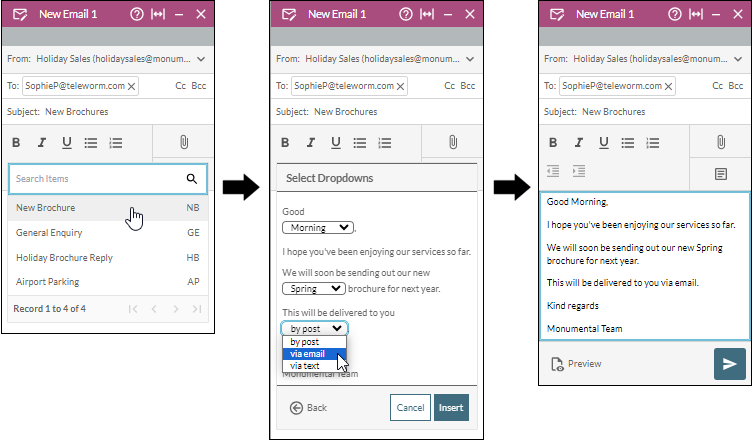
You can optionally configure dropdowns in the message templates that you create. A dropdown is a list of options that presents a choice of words or phrases for allowing agents to tailor their messages to their target destinations. In the illustration above, the 'New Brochure' template is designed with three dropdowns. An agent who is using a message template with dropdowns must either accept the default option in each dropdown or select a different option.
This topic also covers the following related tasks
Procedure
- In the Toolbar at the left of the DTA main application window, click the
 button to display the Settings Window.
 - In the Settings Window, select Message Templates.
- Select Templates.
- On the Templates page, click the
.png) Add button.
Add button. - Type a name for the new template in the Template Name field.
- Select the channel(s) that can use the template. (The channels that appear in this list depend on your organisation's settings.) A template supports either rich text or plain text, and not both. If you select Email (rich text), the plain-text channel options become unavailable. If you select a plain-text channel option, the Email option becomes unavailable.
- Type the template text in the Message field. Use the buttons above the field to format the message as required.
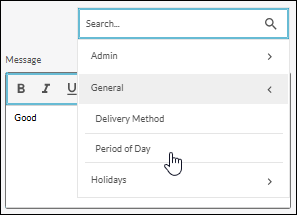
If the Dropdown button is displayed to the right of the formatting buttons, then at least one dropdown has been configured by a supervisor for insertion into message templates. To insert a dropdown at a particular location in your template text, click this button and then select a dropdown from a category. If you know the name of a dropdown or a category, find it quickly by typing its name in the Search field. In the illustration below, the user is selecting the 'Period of Day' dropdown from the 'General' dropdown category.
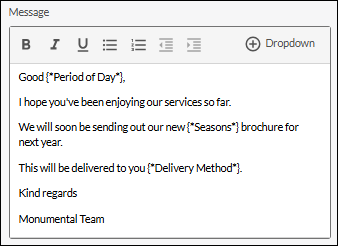
The dropdown is inserted at the location of the text cursor as a non-editable element displaying the name of the dropdown in a pair of asterisks and curly braces. In the illustration below, the user has inserted three template dropdowns named 'Period of Day', 'Seasons', and 'Delivery Method' to allow users of the template to select options from these dropdowns when they compose their messages. You can select and copy a dropdown element to the clipboard for insertion elsewhere in this or another message template.
- Use the Category drop-down list to select a message template category. This is for restricting the new template to particular agent groups.
- (Optional) In the Shortcut field, provide an abbreviated alias name for the template. This will allow you and other agents to quickly find this template by typing all or part of this name.
- Click Save.
The new message template is now available to agents when they compose text-based messages.
- Close the Settings window by clicking its
 button.
Edit a Message Template
This allows you to change any of the settings that were configured when the template was created, such as the text and dropdowns in the template, and the communication channels to which it applies.
- In the Settings Window, select Message Templates and then select Templates.
- Click the template's
 Edit button.
 - Make the required edits, and then click Save.
Delete a Message Template
Deleting a message template means that it will no longer be available for agents to use when composing messages.
- In the Settings Window, select Message Templates and then select Templates.
- Click the template's
 Delete button.
 - Confirm the deletion.
See Also
Create a Message Template Category (supervisors only)
Create Message Template Dropdown Dropdown Categories (supervisors only)