Bulk Upload Message Templates
Supervisors only
A message template is a snippet of text that DTA users can quickly insert into their email, SMS, web chat, and social media messages to save time and effort when interacting with contacts.
This section tells you how to upload lots message templates in a single operation. You can add up to 10,000 templates in this way.
Procedure
- Prepare a CSV file containing the template data and store it in an accessible location.
The following table shows the supported configuration properties. These are allowed to appear in any order in the file.
Note: property names are currently supported in the English language only.
|
Supported configuration property |
Optional or mandatory? |
Supported data |
|
Name |
Mandatory |
A unique name for the message template (up to 128 characters long). |
|
Channels |
Mandatory |
One or more communication channels, which must match the channels configured in your organisation. Multiple channels must be separated by hyphens (for example, chat-SMS). If a template is for email, no other channel may be used in that template. Similarly, if a template is for one or more non-email channels, then email must not be used in the template. |
|
Content |
Mandatory |
Email templates may include HTML tags, but unsafe tags — such as <script> or <style> — will be removed automatically. Non-email templates cannot contain HTML but they may include line breaks in content that is enclosed by quotation marks. |
|
Shortcut |
Optional |
A shortcut (up to 10 characters long). |
|
Category |
Optional |
This must match the name of a configured template category. |
The example below shows the contents of a CSV file for uploading three new message templates. Here, the text in the 'Content' property for each template is enclosed in quotation marks.
|
Name,Channels,Shortcut,Category,Content |
- In the Toolbar at the left of the DTA main application window, click the
 button to display the Settings Window.
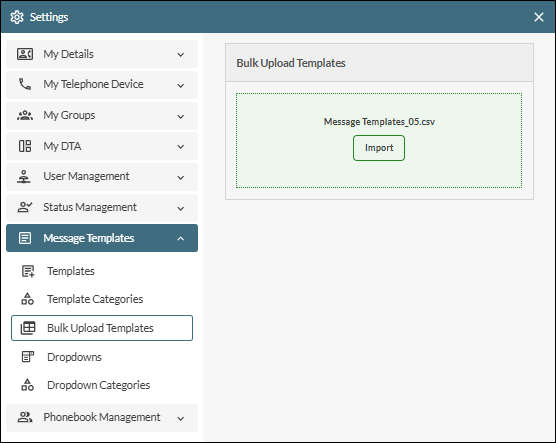
- In the Settings Window, select Message Templates.
- Select Bulk Upload Templates.
- Click the Browse Files button and then browse for and select the CSV file in the Open dialog. Alternatively, drag the file into the drop area. The name of the selected file is displayed in the window.
- Click the Import button.
- If any error messages are displayed, correct the data in the CSV file and then re-import the file.
- Close the Settings window by clicking its
 button.
Note: the bulk upload procedure cannot be used to change the configuration properties of existing message templates.