1.
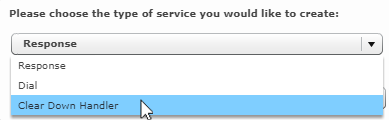
Select the New  button on the toolbar and then select the 'Clear Down Handler' option:
2.
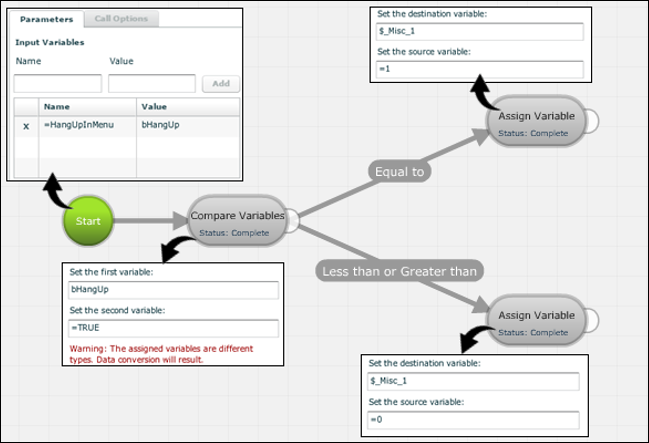
Use the appropriate action cells to create the clear down logic (such as updating values in a data table or extended record fields used in VIEW historical reports).
3.
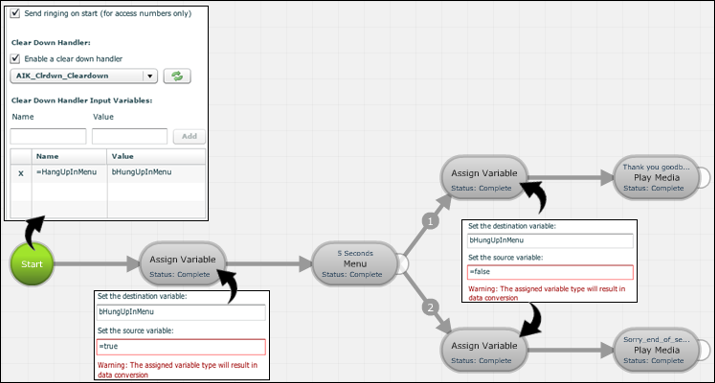
Identify a script variable that is to receive a value from the main script when it clears down. For example, bHungUp.
4.
Click the Start action cell and then its Parameters tab.
5.
In the Name column, enter a string ID preceded by = for associating the variable with the equivalent variable in the parent script. (For example, =HangUpInMenu.) In the Value column, enter the local script variable (bHungUp) that should receive the passed value.
6.
Click Add.
7.
Repeat steps 3 to 6 for further variables that need to be updated when the main script clears.
8.
Save and commit the script.