Preview Pacing Profile
Preview pacing profiles are used for campaigns where, for each outbound number, the service displays information about the target (taken from the campaign's contact list) to the agent, and the agent places the call when they are ready; automatic outbound dialling is not used.
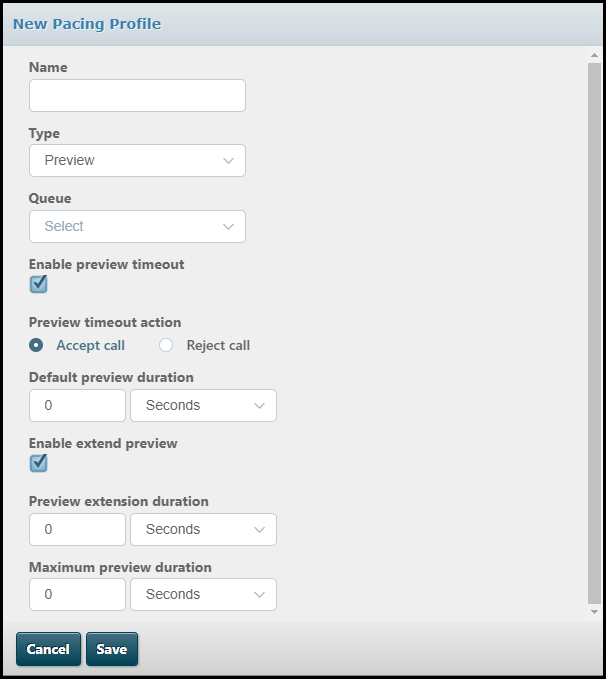
Preview pacing profile types require you to define the pacing profile name, the queue and, optionally, the preview timeout action. At run-time, for each outbound number retrieved by the campaign, the service will retrieve customer data and route it to the next available agent in the same way as it does answered calls; but the agent has the opportunity to accept (make) or reject (decline) the call.
Use the Queue field to select the queue.
While the campaign is running:
- If the agent accepts the call, but then does not complete it, the call is assumed to have failed, and is retried (as specified by the retry profile).
- If the agent rejects the call, or accepts the call but cannot reach the target, or accepts and completes the call they are able to select a completion code. The completion code selected can be used to indicate that the call should be retried.
- The system will prevent incoming and internal calls from being routed to agents who are previewing a call before placing it.
When the check box Enable preview timeout is cleared, the preview data will be displayed to the agent for several minutes but if the agent does not accept the call it is eventually removed from the agent's DTA and is returned to the queue so that another agent can make the call.
When the check box Enable preview timeout is selected, more options are displayed.
Select an option for the Preview timeout action. This determines whether, when the preview timeout has expired, the call is automatically accepted, and the call is made, or automatically rejected and returned to the queue for another agent to take.
Select 'Seconds' or 'Minutes' from the drop-down list and then enter a value for the Default preview duration. This is the amount of time the contact information is displayed to the agent before the call is automatically accepted or rejected (according to the preview timeout action). The amount of preview time remaining is displayed to the agent in DTA.
Note: you are able to set the default preview duration to 0 (zero), which disables the preview function. If you do this, you must set the preview timeout action to 'Accept call' (meaning that the call will be made immediately). If you set the preview timeout action to be 'Reject call', the default preview duration must be 10 seconds or more.
Agents are able to extend the amount of time allowed for them to preview calls in DTA when they need to. See the DTA user documentation for details.
Select the Enable extend preview check box if you want agents to be able to extend the preview time.
Select 'Seconds' or 'Minutes' from the drop-down list and then enter a value for the Preview extension duration. This is the amount of time that will be added to the preview time each time the agent clicks the Extend button in DTA. The amount of preview time remaining is updated in DTA.
Select 'Seconds' or 'Minutes' from the drop-down list and then enter a value for the Maximum preview duration. This is the maximum amount of time the agent will be allowed to preview the contact's details before the call is automatically accepted or rejected (according to the preview timeout action). If the agent clicks the Extend button in DTA when the maximum preview duration has been reached, a message is displayed to the agent informing them the maximum limit has been reached and the preview time is not extended.